This article will show you how to start a scheduled inspection from the web app.
Starting a Scheduled Inspection
Tap on Schedules on the control panel on the left and you be taken to the Schedules page. Hover your curser over the row on the list and the Start Inspection button will appear.
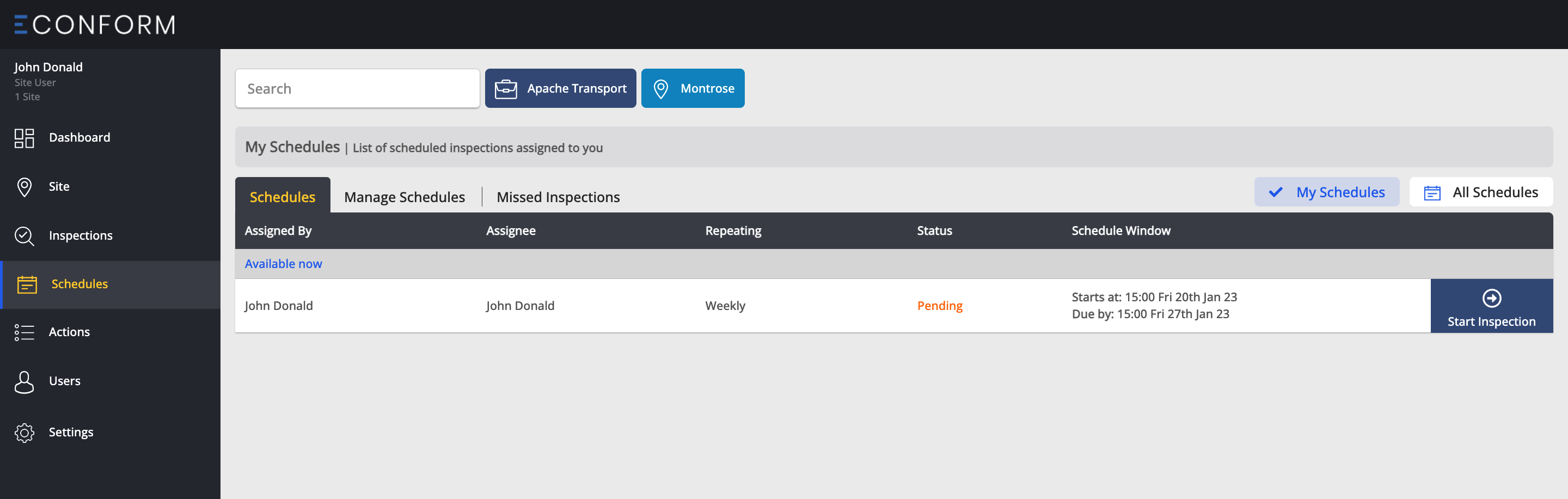
Tap on the Start Inspection button and a modal will pop up with details of your organisation and the site in which you will be conducting the inspection.
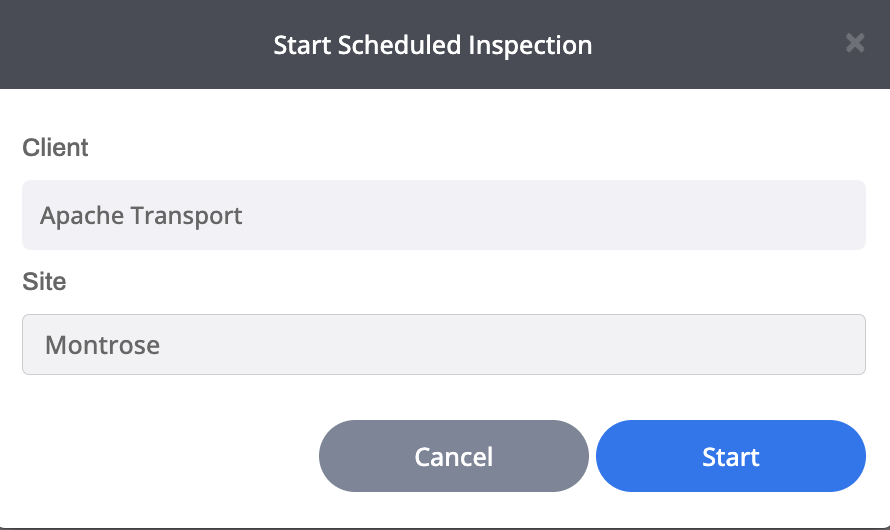
Tap on the Start button and you will be taken to the inspection page.
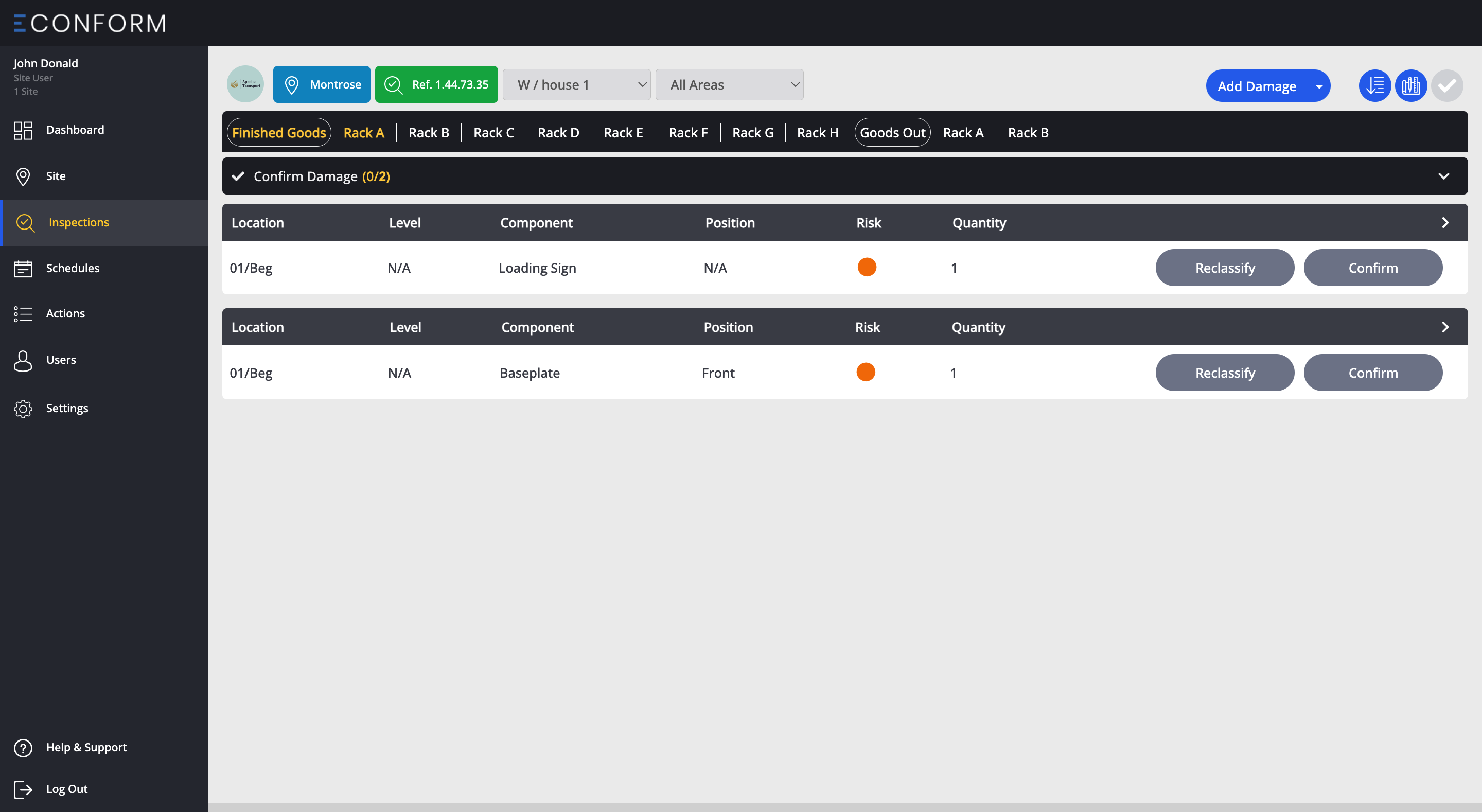
Continuing a Scheduled Inspection
After starting the scheduled inspection on the Schedules page, the same inspection card is also generated on the Inspection List.
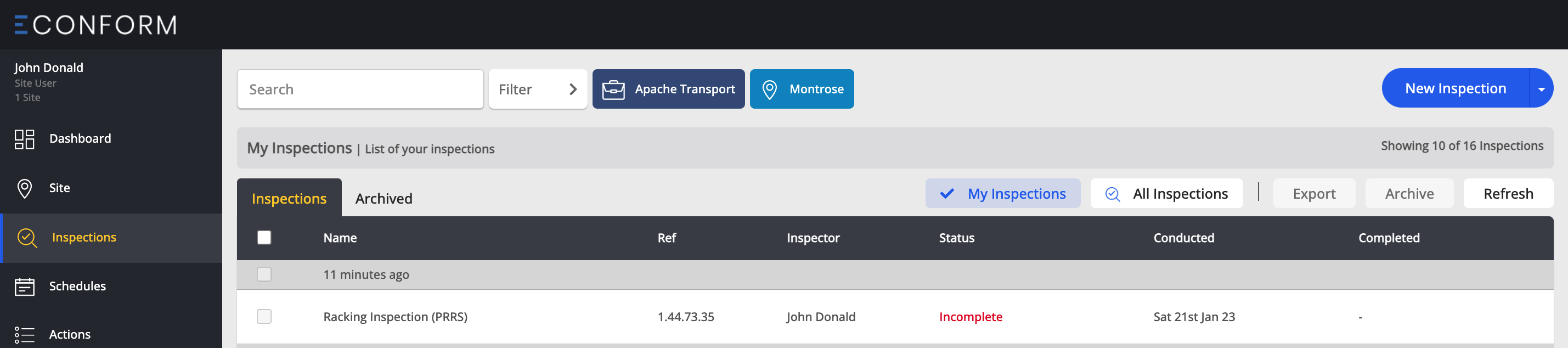
If you failed to complete the scheduled inspection and wanted to return to it at a later time, you are able to access the same Scheduled Inspection from the list on either the Schedules page or the Inspections page.
After signing off and completing your scheduled inspection, the inspection will be removed from the Schedules list, however the inspection will remain on the Inspection list and you will be able to access the completed inspection if need be.
| More than one person can work on an inspection at any given time. To access an inspection started by another person within your organisation on the web app, tap on the All Inspections button at the top of the inspection list and find the inspection on the list, hover your cursor over the row and tap the Cont. Inspection button. |