This article will give you an overview of the My Actions screen where you can find your actions for your site.
The My Actions screen of the mobile app shows a list of actions assigned to you. The All Actions screen shows a list of all of your organisation's actions.
To navigate either list, tap on the header at the top of the screen. The screen you are on is detailed with a Blue Line under the heading.
| More than one person can work on an action at any given time. To access an action assigned to another person within your organisation, tap on the All Actions header at the top of the screen and click on the Action Card to start or continue the action. |
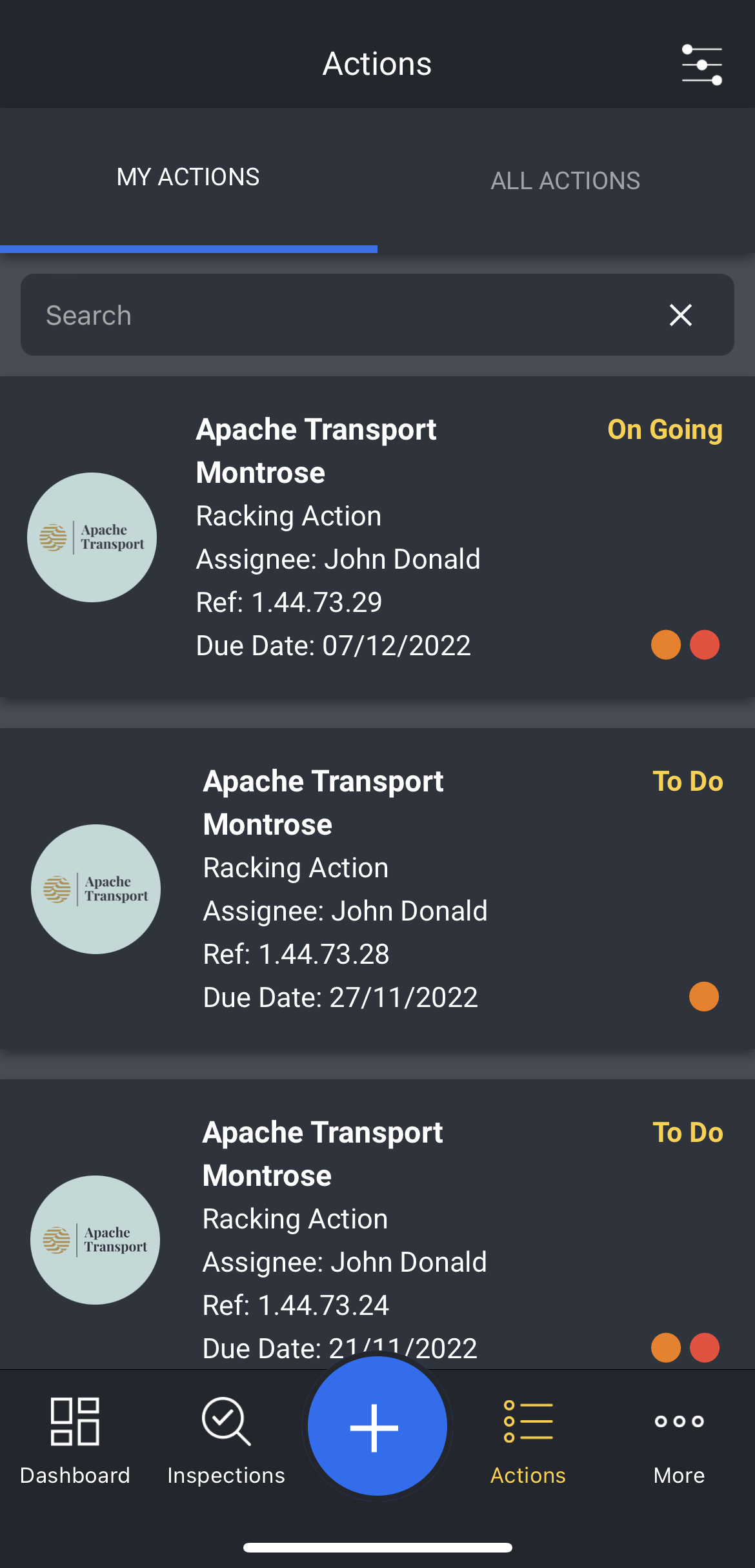
Action Card
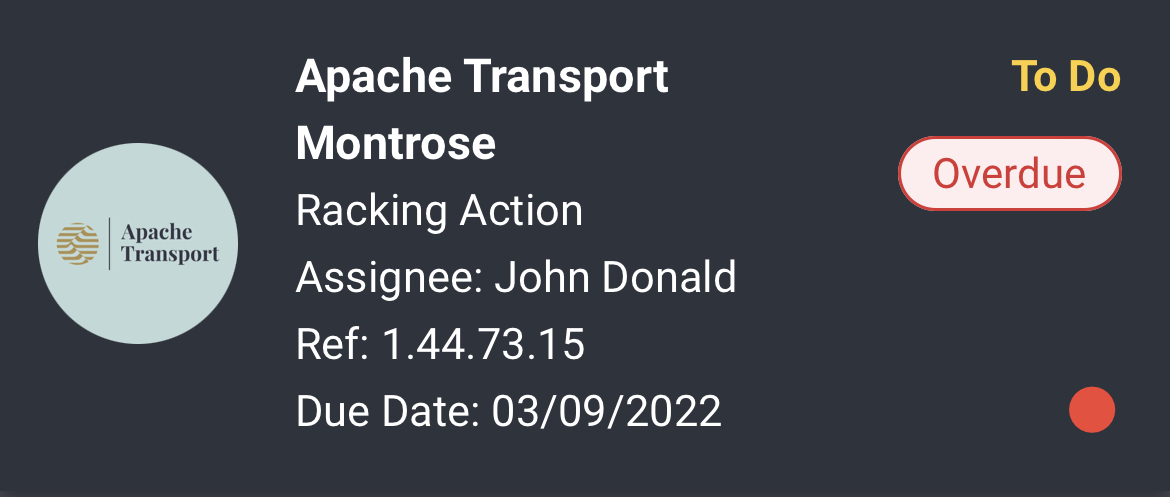
Action Card Pop Up Options
When you tap on the Action Card a pop up will appear with a number of options you can choose from depending on the status of the action; To Do, Ongoing, Completed and Unfinished.
To Do Action Pop Up
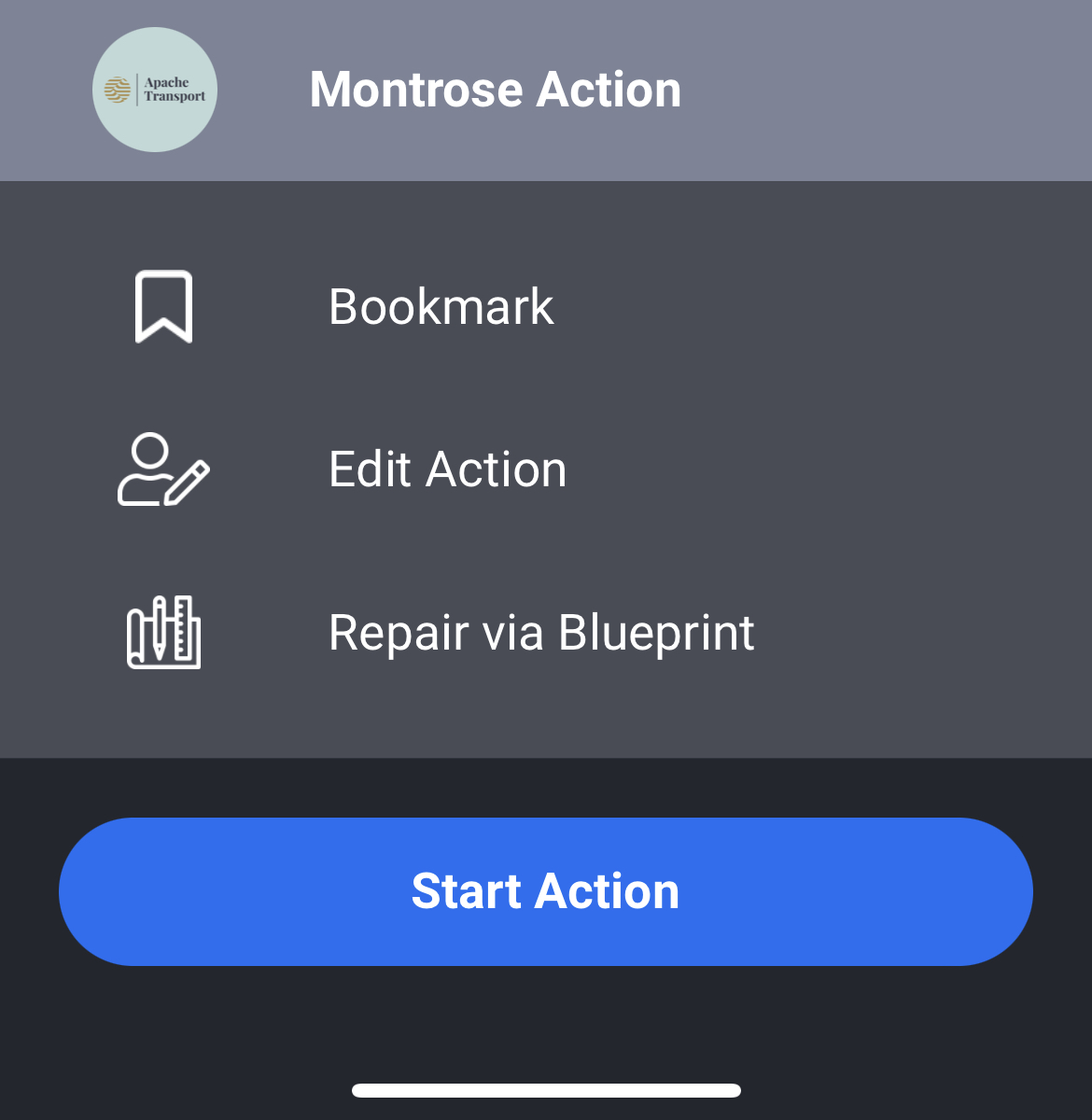
Bookmark
Tapping on Bookmark will add the action under the Bookmarked heading at the top of My Actions list screen. This is a good way to prioritise actions. To remove the bookmark, simply tap on the action card to bring up the pop up and select Bookmarked.
If you bookmark an action on the mobile app this will also be bookmarked on the action list of the web app.
Edit Action
Tapping on Edit Action will take you to the edit action screen where you will be able to edit the following, Assignee, Due Date and toggle on and off if Photo Evidence is required.
| You can only edit an action if no repairs have been closed out and the status of the action is To Do. |
Repair Via Blueprint
Tapping on Repair Via Blueprint will take you to the Blueprint where you will be able to tap on a damage indicator and close out a repair.
Start Action
Tapping on Start Action will take you to the Action Details screen and then onto the Action screen where you can start to close out the repairs associated with the action.
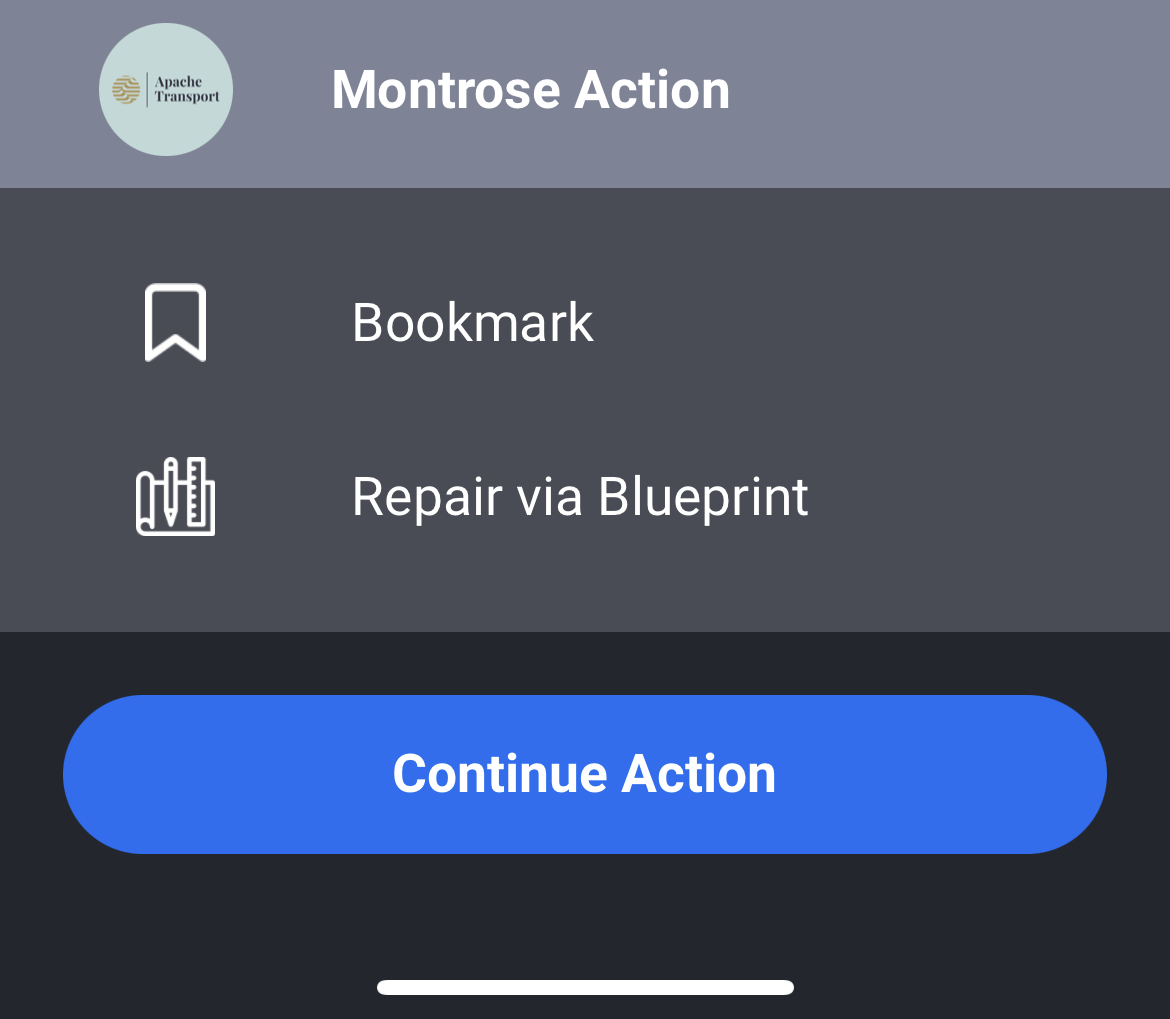
Ongoing Action Pop Up
Bookmark
Tapping on Bookmark will add the action under the Bookmarked heading at the top of My Actions list screen.
Repair Via Blueprint
Tapping on Repair Via Blueprint will take you to the Blueprint where you will be able to tap on a damage indicator and close out a repair.
Continue Action
Tapping on Continue Action will take you to the Action Details screen and then onto the action screen where you can start to close out the repairs associated with the action.
Completed Action Pop Up
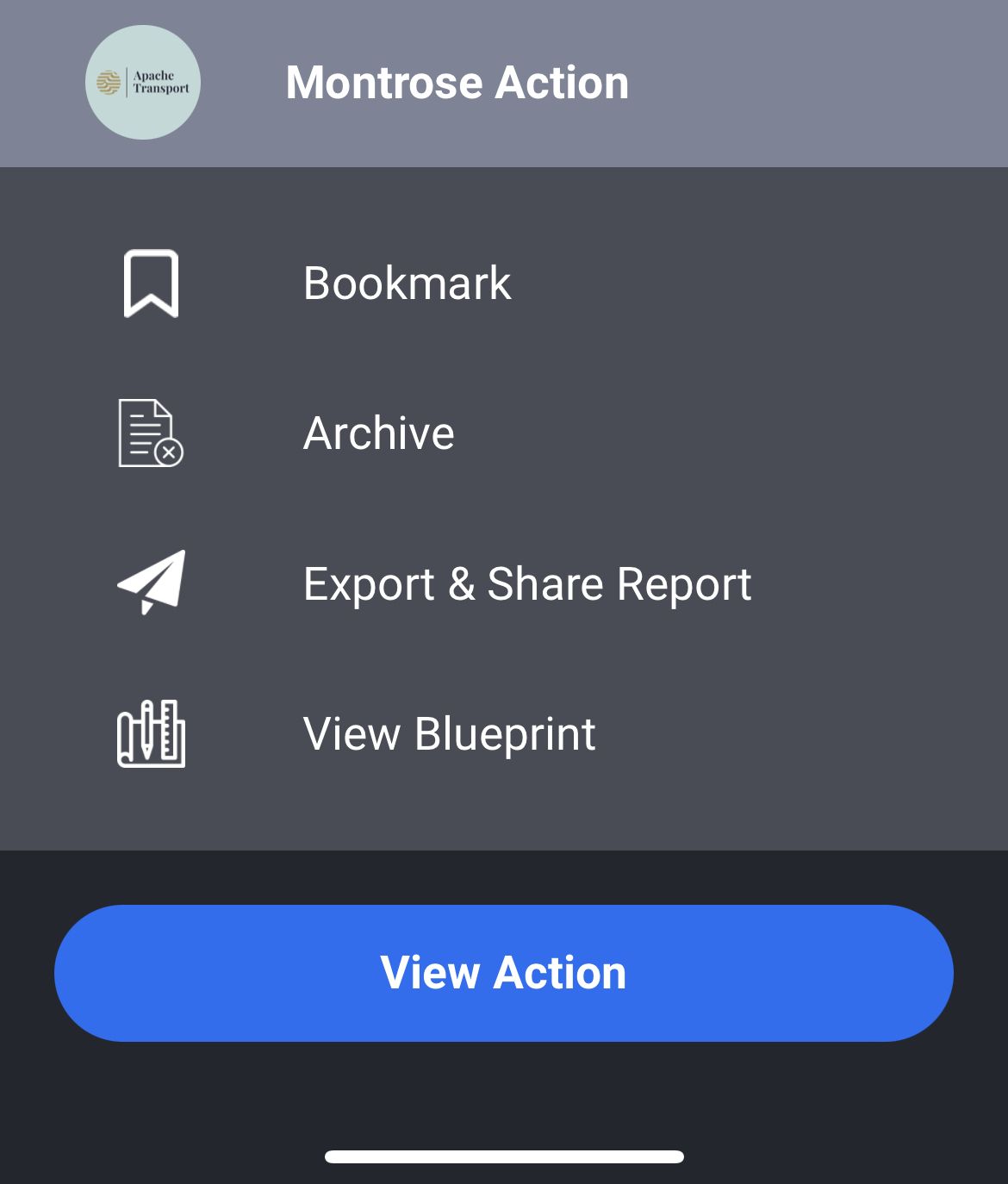
Bookmark
Tapping on Bookmark will add the action under the Bookmarked heading at the top of My Actions list screen.
Archive
Tapping on Archive will bring up a confirmation prompt: “Are you sure you want to archive this action?” Tapping Yes will remove the action from the actions list and place it into the list of archived actions. You are able to view a list of your archive inspection on the Action page of the web app under the Archive tab.
Export and Share Report
Tapping on Export & Share Report will allow you to download and view the pdf report or attach the report and send it via your chosen application on your device. You also have the option to share a link to the report via your chosen application on your device.
View Blueprint
Tapping on View Blueprint will take you to the Blueprint where you will be able to tap on a damage indicator and view the damage classification.
View Action
Tapping on View Action will take you to the Action Details screen and then on to the action screen.
Unfinished Action Pop Up
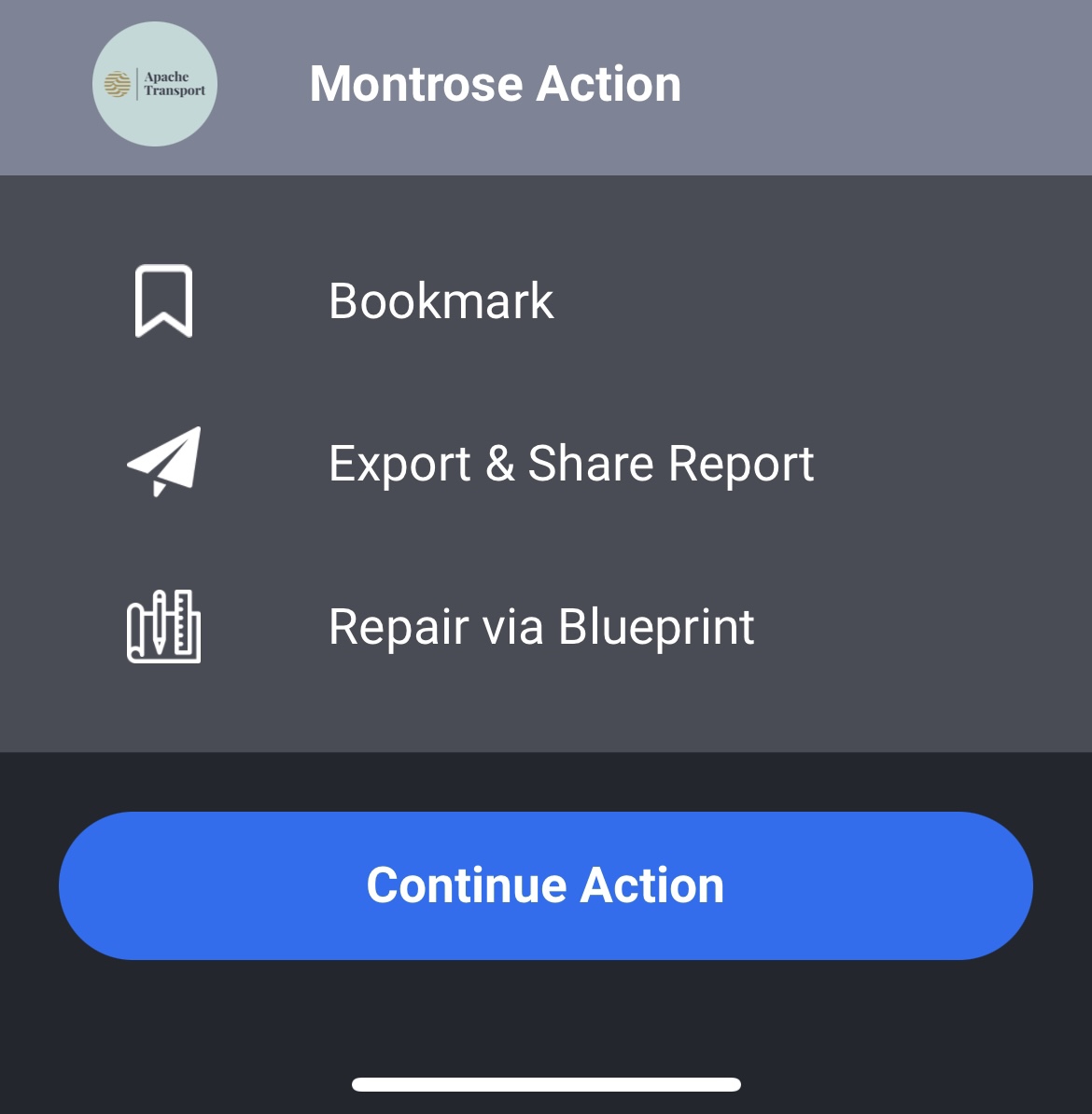
Bookmark
Tapping on Bookmark will add the action under the Bookmarked heading at the top of My Actions list screen.
Export and Share Report
Tapping on Export & Share Report will allow you to download and view the pdf report or attach the report and send it via your chosen application on your device. You also have the option to share a link to the report via your chosen application on your device.
Repair Via Blueprint
Tapping on Repair Via Blueprint will take you to the Blueprint where you will be able to tap on a damage indicator and close out a repair.
Continue Action
Tapping on Continue Action will take you to the Action Details screen and then onto the action screen where you can start to close out the repairs associated with the action.
Search & Filters
Search
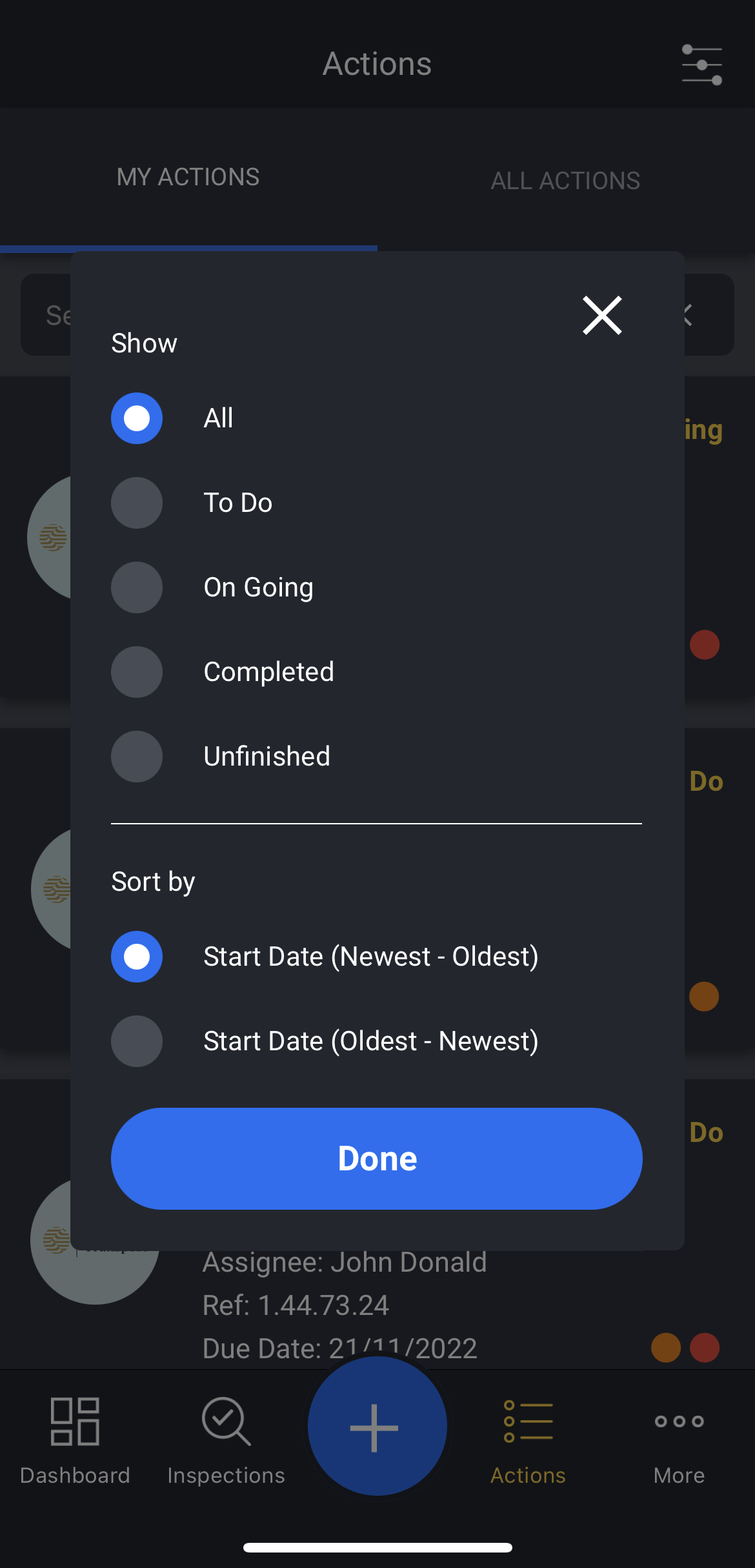
You can filter the results by searching for a particular site or action reference. Tap on the Filter Icon at the top of the action list screen and it will bring up the filter option pop up.
Action Status (Show)
You can filter the action list by Action Status. Select either To Do, Onoing, Completed or Unfinished. You can clear the filter by selecting All.
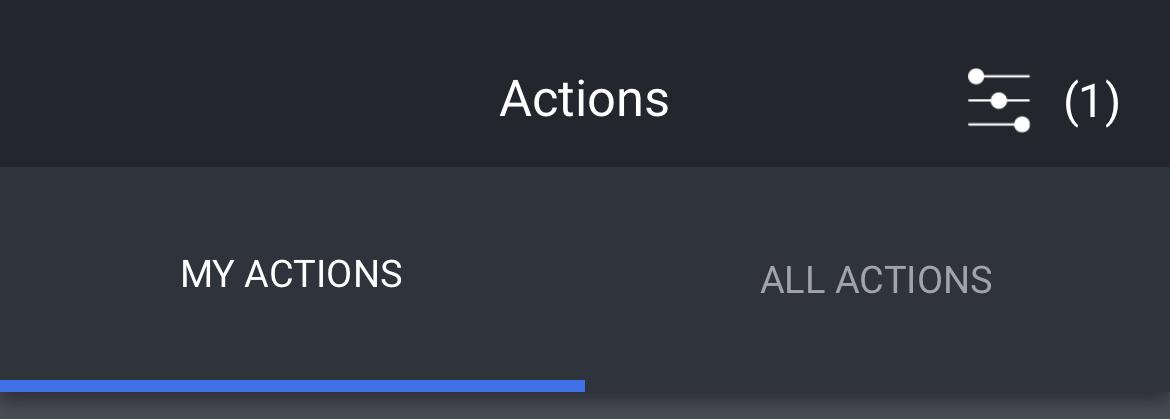
When you have applied a filter, a number counter (1) will be shown to the right of the filter icon on the Action list. Be sure to remember to remove the filter by selecting All.
Sort
The action list is sorted by Start Date. You can choose to sort the list into ascending or descending order by selecting either Start Date (Newest - Oldest) or Start Date (Oldest - Newest).